Accessibility
With everyone having their own unique style of learning, it is difficult to include what best suits every single student in the classroom! That is where Universal Design for Learning (UDL) comes in.
 |
What's your learning style(s)?Image Source: Knowledge2Motion |
Designing for Accessbility
I took a deep dive into the Dos and Don'ts on Designing for Accessibility. Keep in mind, the posters are suggestions, and one size does not fit all. An accommodation that works for one student might not work for another, but taking the extra step will not do any harm. The blog includes six posters for the following: autism spectrum, screen readers, low vision, physical or motor disabilities, deaf or hard of hearing, and dyslexia.

Image Source; The Dos and Don'ts on designing for accessibility -- autistic spectrum poster
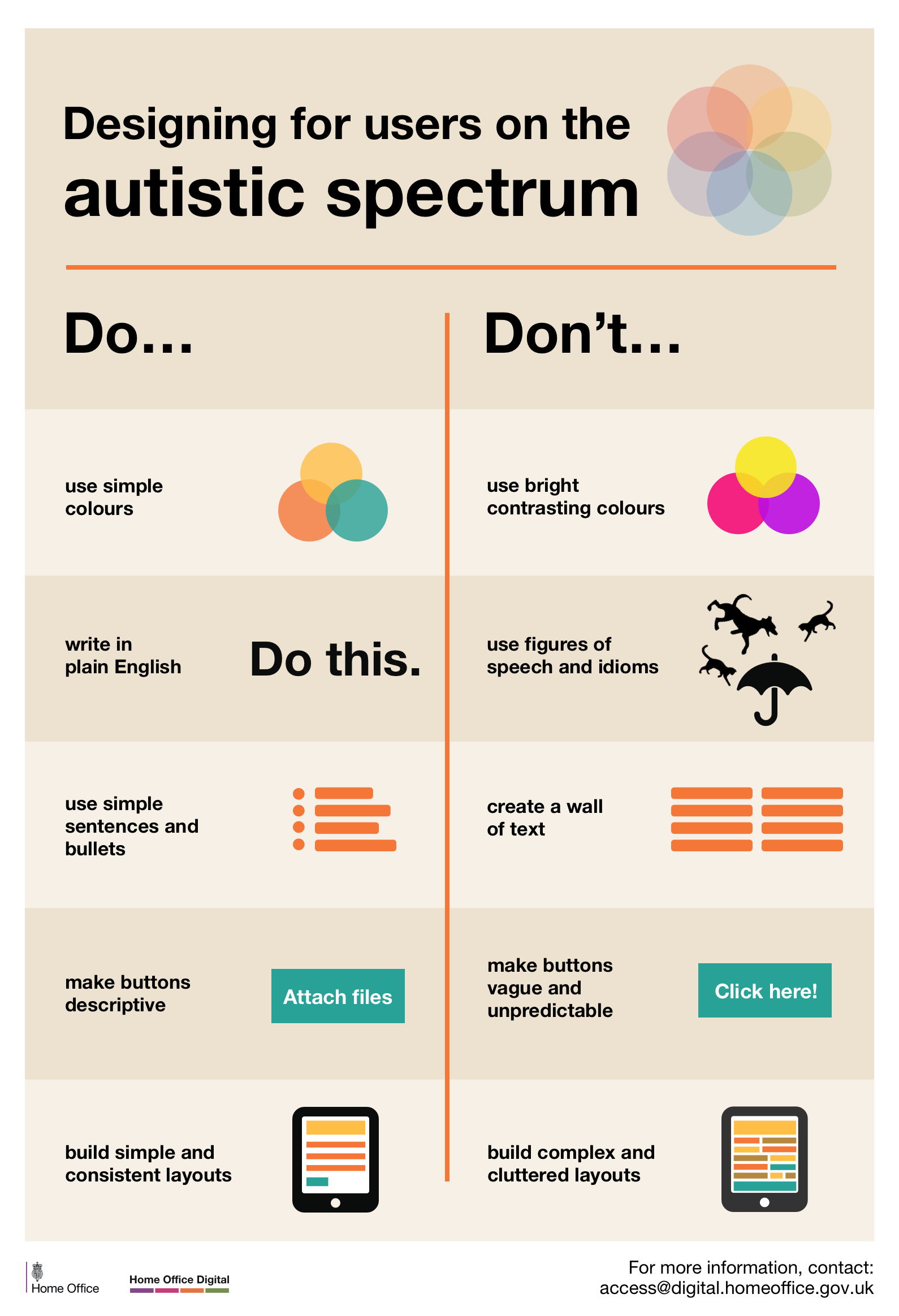
The blog post from Karwai Pun (author of The Dos and Don'ts on designing for accessibility) shares how an accommodation for one student can also work for another student with a different need. It can also be the complete opposite. It is all about testing the waters to see what works.
Accessibility Features

Image created by author via Canva
Students in my classroom do not have access to too much technology directly but on occasion, we utilize the iPad for accommodations. When it comes to universal design for learning, we focus more on representation and expression. Accessibility features on the iPad include, but are not limited to, VoiceOver, Zoom, Display and Text Size, LED Flash for alerts, Spoken Content, and Assistive Touch. VoiceOver allows content on the screen to be read. This feature requires the user to touch the word(s) they would like to hear. Students can also utilize the zoom/display and text size feature on the iPad. This feature allows for the text size to be adjusted to the users' needs. Button shapes and color differentiation can also be adjusted within this feature. Individuals with hearing loss may utilize the LED flash for alerts feature, to ensure receiving the alert as soon as they see the flash. LED Flash alerts also give access to notifications in a loud classroom environment. Spoken Content allows for the users' to hear the text (whole or partial page). Spoken Content also allows for the words to be highlighted as they are being read, versus VoiceOver, where the user would have to tap the words/icons they would like to hear. Assistive Touch, which appears as a white dot on the screen, allows for customizable gestures. Those gestures may include app switching, screenshot, scroll, speak screen, Siri, volume adjustment, control center, etc. With most accessibility features on Apple products, the pitch and speed of the audio can be adjusted.
I chose to create an infographic because I am more of a visual learner. When there is too much jargon on a page, I can only take in so much information.
Reflection on Accessibility
Accessibility is so important in education. As I mentioned above, individuals have many different styles of learning, and one size does not fit all. One student might learn best through reading and lecturing, but another student might learn best using hands-on activities. Taking the extra step to include different styles of engagement, representation, and expression.
Currently, I do not have much experience with accessibility in education. We do take the extra steps to make accommodations and adjustments for students to express themselves in their preferred ways, such as having a student point at an object and show me instead of using their words to express their needs. I feel that I am strong in finding different ways of expression for students, but I also need to work on accessibility in early childhood and other ages.
You created a great infographic on accessibility features on the iPad. I also appreciated that you chose to create an artifact that reflected how you, yourself, like to learn. Many of us as educators do this.
ReplyDelete